


Client-side security alerts

Give your team a finding they can act on.

SiteWall by CellWall connects client-side security alerts with the browser evidence behind them. Configure notifications for new issues or anomalies, deliver summaries through your team’s channels, and follow the affected resources into investigation. Security and engineering teams can review the finding before deciding on a scoped response.

Section Divider

Define when a browser finding needs attention.

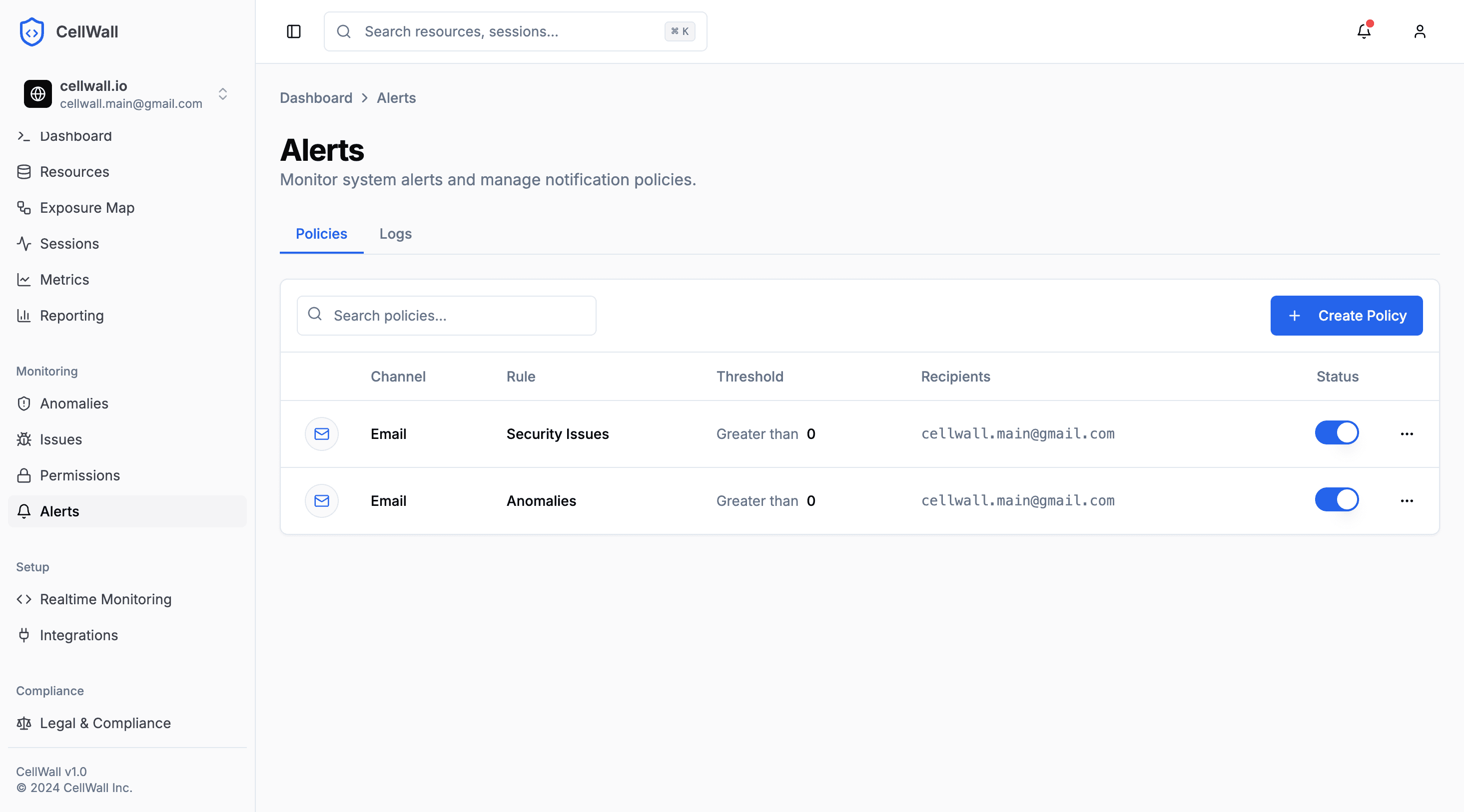
An alert policy turns a count of new findings into a notification rule. Choose issues or anomalies, set a threshold, select recipients and channels, and enable the policy. Keep policies focused on the signals your team is prepared to investigate.

The platform’s policy list shows issue and anomaly rules, greater-than thresholds, recipients and enabled status.

Choose the finding type

Create separate policies for issues and anomalies. Findings carry the context for review; the alert policy controls when their count triggers a notification.

Set a clear threshold

Notification evaluation checks whether the number of new findings exceeds your threshold. A threshold of zero means one or more qualifying new findings can trigger delivery.

Keep policies manageable

Search the policy list and enable or disable a policy as your monitoring needs change. Review recipients whenever team responsibilities or channel configuration change.

Alert policies listing issue and anomaly count thresholds, email recipients and enabled switches

Notification context

Send more than a warning. Send a starting point.

A notification should help the recipient recognize the website, understand the finding and open the relevant evidence. SiteWall brings that context into configured email, Slack, Microsoft Teams and Discord delivery paths.

Context

Recognize what needs review

Messages include the project context, finding count, severity and summaries of findings. Resource details and links are included when available, helping the recipient identify the script involved before opening the platform.

Channels

Meet your team in its workflow

Choose supported channels and configure their recipients or endpoints. Email and collaboration-channel notifications bring browser findings into the team’s existing working environment, with links back to SiteWall for investigation.

History

Check what happened to delivery

Review alert history and recorded delivery status to see whether a notification was sent or failed. Delivery status describes the notification attempt—not whether a person acknowledged, investigated or resolved the finding.

Browser incident investigation

Follow the alert to the behavior behind it.

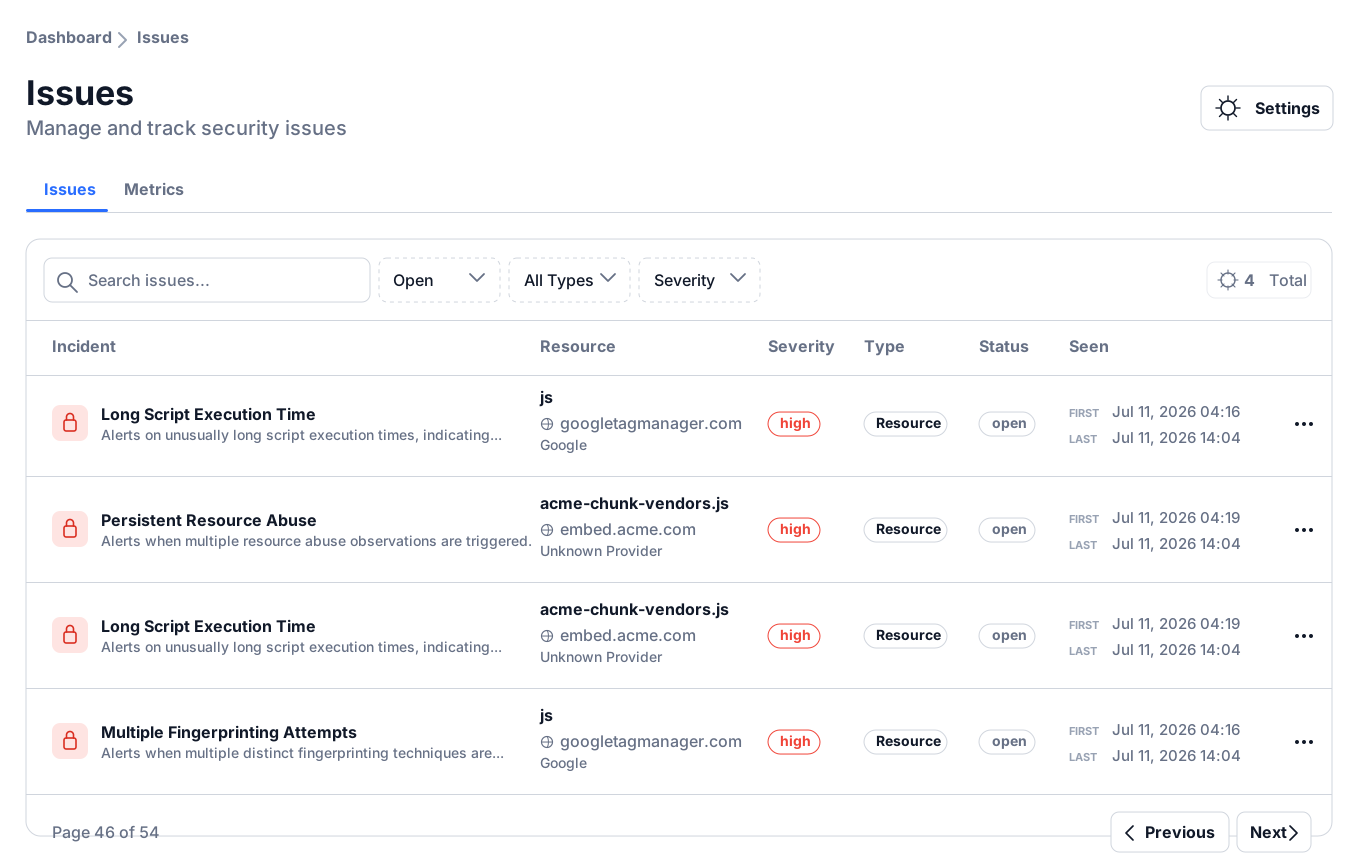
A finding is a reason to investigate, not a verdict that a website has been compromised. Open the linked issue or anomaly, examine its description and severity, and review the affected resource and available session evidence. Establish what changed before deciding what to contain.

This walkthrough moves from an issue to an anomaly and its associated sessions—the investigation that follows notification.

Read the resource context

Inspect the finding alongside the affected script, its purpose and available evidence. Distinguish expected functionality from behavior that needs a closer review.

Keep the next action deliberate

Use the evidence to decide whether a provider, resource, browser-capability or network policy needs adjustment. For issue resolution, record the current status, reason and review comment.

Issues Dashboard

From alert to response

Choose the response that fits the finding.

Client-side incident response connects the technical finding to a human decision. Use the platform’s controls alongside your team’s existing incident procedures.

01

Investigate before classifying

Review the resource and available session evidence. Determine whether the finding reflects a security concern, an expected integration change or behavior that needs engineering investigation.

02

Scope the control change

If action is warranted, review supported provider, resource, capability or network controls. Consider legitimate dependencies before applying restrictions. An alert does not automatically change these policies.

03

Review subsequent observations

After a change, inspect new browser observations and the affected functionality. Update the issue’s resolution context when appropriate, and carry the findings into your normal response process.

Operational setup

Make notification readiness part of the rollout.

Start with a representative project and a small set of useful policies. Validate the path from finding to recipient before expanding your configuration.

Prepare

Confirm the signal and destination

Check that relevant issues or anomalies appear in the project, select the appropriate alert policy and verify its configured recipients. Ensure the chosen notification channel is connected and available for the project.

Validate

Review the result, not just the setting

When qualifying findings trigger evaluation, inspect the alert history and confirm receipt in the destination channel. Processing and delivery depend on evaluation timing and channel configuration; the workflow is not an on-call escalation or guaranteed-delivery service.

Practical questions

Questions about browser alerts and response

What are client-side security alerts?

Client-side security alerts notify a team about browser-related findings that meet a configured policy. In SiteWall, policies evaluate counts of new issues or anomalies and deliver summaries with links into the platform for investigation.

What can trigger a SiteWall alert?

The implemented evaluation checks whether new issue or anomaly counts exceed a configured threshold. This is a finding-count rule, not a severity threshold or a general alert engine for every raw browser event or performance metric.

Which notification channels are supported?

Email, Slack, Microsoft Teams and Discord delivery paths are supported when configured. Select the channels and appropriate recipients or endpoints for the policy, and verify delivery in the destination.

What context does a notification include?

Notifications include project context, finding count, severity and finding summaries. Links open the related issues or anomalies, and resource links are included where resource identifiers are available.

Does an alert automatically block a third-party script?

No. Notification and enforcement are separate. Review the evidence and choose whether to adjust supported provider, resource, browser-capability or network policies, taking the website’s legitimate functionality into account.

How do we check whether an alert was delivered?

Review alert history and the recorded delivery status, then confirm receipt in the configured channel. A sent status is not an acknowledgment from a person or confirmation that a finding was resolved.

Are alerts instantaneous?

No zero-latency guarantee is made. Finding capture, policy evaluation and notification delivery are separate stages. Timing depends on the evaluation process, channel configuration and messaging service.

Does this replace our incident-management process?

No. SiteWall supplies browser findings, notification context and supported controls. Your team still determines incident classification, responsibilities, escalation and recovery procedures in its existing workflow.

Your team, informed

Connect the next finding to a considered response.

Explore how alert policies, notification context and browser evidence work together for your website.