
Email
Reach the people reviewing the website
Send alert summaries to configured email recipients. Give reviewers project context and links to the relevant findings without requiring them to keep the dashboard open.
Browser security integrations
SiteWall by CellWall connects browser-security findings to configured email, Slack, Microsoft Teams and Discord channels. Send issue and anomaly summaries with investigation links so security and engineering teams can pick up the work where they communicate, then return to the platform to review the underlying resource and evidence.

Supported notification channels
Each channel has a specific delivery path and configuration. Connect the destination, select it in an alert policy and verify receipt before making it part of your operational workflow.
Send alert summaries to configured email recipients. Give reviewers project context and links to the relevant findings without requiring them to keep the dashboard open.
Send notifications to the configured Slack channel through the messaging service. The channel destination and service credentials must be set up for delivery.
Deliver notifications to a configured Microsoft Teams webhook endpoint. Confirm that the endpoint and receiving workflow are compatible with the notification payload.
Use a configured Discord webhook to deliver finding summaries into the intended channel. Keep the endpoint current and verify receipt when configuration changes.
From message to evidence
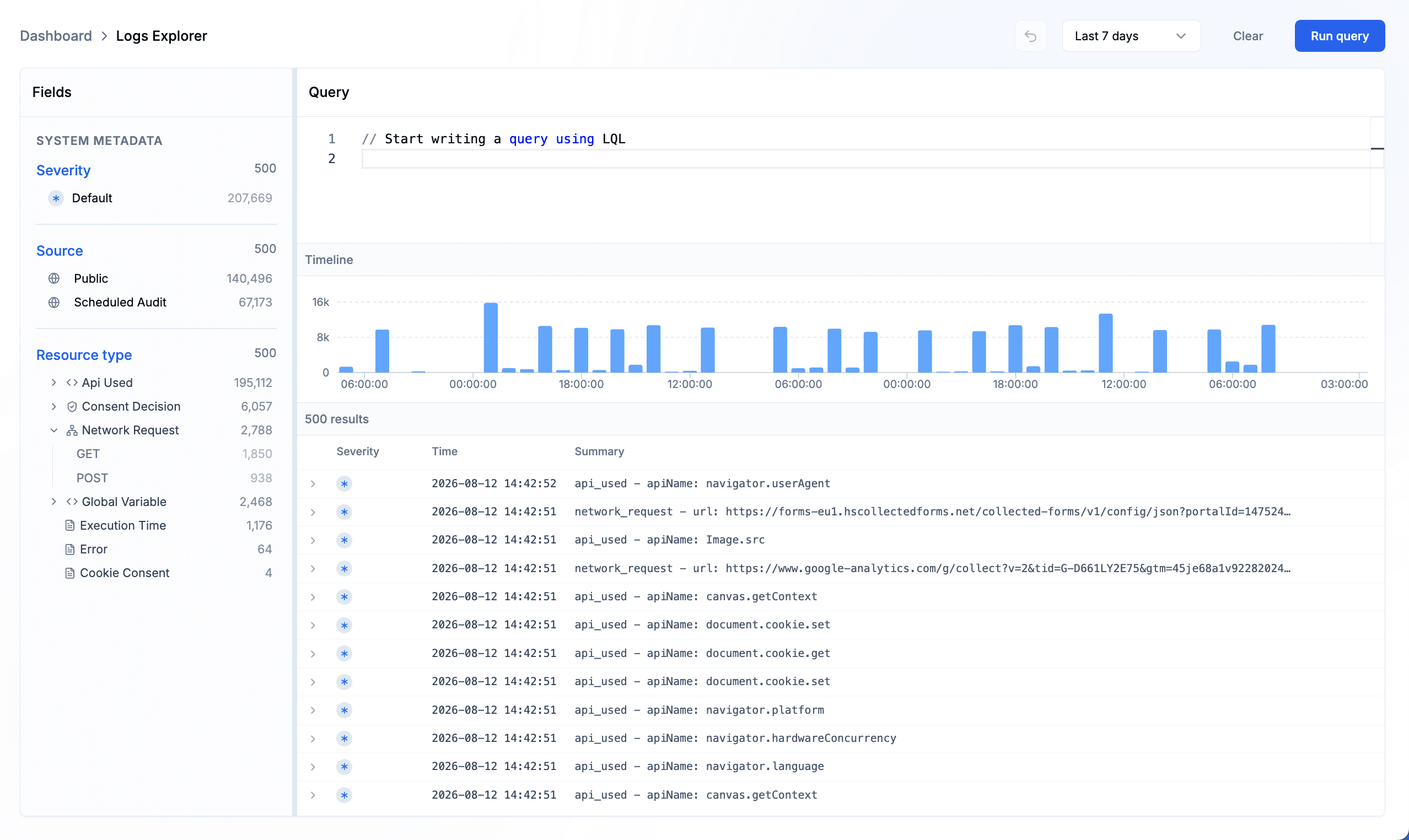
Notifications carry project context, finding counts, severity and summaries, with links to the related issue or anomaly and available resource links. Use the message to identify what deserves attention, then continue the investigation in SiteWall. When you need event-level detail, inspect the relevant browser records in Logs Explorer.
Logs Explorer expands a captured API event and its metadata. This illustrates the browser evidence available for further investigation, not a log stream exported to a messaging channel.

A summary helps the recipient recognize the website and finding. Available resource details make it easier to identify the script involved and decide who should review it.
Follow finding links into the platform, then inspect available resource and session context. Access to the underlying records remains subject to platform authentication and project permissions.
Connection checklist
A useful integration combines a configured channel, a relevant alert policy and a successful handoff. Work through all three before relying on the connection.
Choose the destination and confirm the required messaging credentials or webhook endpoint are configured. Check that the destination is intended for the team reviewing these findings.
Select issues or anomalies, set a count threshold, choose the channel and recipients, and enable the policy. The policy determines when notification is attempted; the integration determines where it goes.
When qualifying findings trigger an alert, review delivery history and confirm the message arrived. Open its finding link with the intended reviewer’s access to verify the investigation can continue.
Maintain the connection
Team channels change. Credentials rotate. Keep notification configuration aligned with the people and systems that will use it.
Use alert history and recorded sent or failed status to inspect notification attempts. If delivery fails, review the channel configuration and destination before relying on subsequent messages. A sent status does not establish human acknowledgment.
Messages can include finding descriptions and resource context. Choose recipients and channel membership accordingly, and review endpoint access when responsibilities change. Keep credentials and webhook URLs out of public documentation.
The supported paths on this page deliver notifications. Native SIEM export, ticket creation, on-call escalation and CI/CD enforcement are not established by these connections. Any additional workflow needs its own implementation and validation.
Explore the monitoring and alert policies behind each notification.
See how browser findings connect to resources, controls and evidence.
Choose what triggers a notification and how the finding enters response.
Inspect the browser activity behind issues and anomalies.
Move from a finding to a scoped investigation and containment decision.
Practical questions
This page covers configured notification delivery through email, Slack, Microsoft Teams and Discord. These connections bring issue and anomaly summaries to your team, with links back to SiteWall for investigation.
An enabled alert policy evaluates new issues or anomalies against a count threshold. When the threshold is exceeded, the platform attempts delivery to the configured Slack destination through its messaging service.
The implemented notification paths send to configured Microsoft Teams and Discord webhook endpoints. The destination must support the payload used by the messaging service. These are channel-specific paths, not a promise of arbitrary webhook compatibility.
Notifications include project context, finding count, severity and finding summaries. Links point to related issues or anomalies, with resource links where identifiers are available. The message is not a full browser telemetry export.
Notification links lead back to the platform. Access to the underlying project and records requires appropriate authentication and permissions; receiving a message does not grant that access.
No. Recorded delivery status concerns the notification attempt. Confirm receipt in the channel and use your existing team process for acknowledgment, assignment and escalation.
Native ticket creation and SIEM export are not part of the notification paths described here. Catalog entries alone do not establish a working connector. Validate any additional integration separately before depending on it.
No. Notifications provide context and links for review. Browser policy changes are a separate action; these delivery paths do not automatically remediate findings.
Review the supported channels and configuration that fit your website’s security workflow.